> For the complete documentation index, see [llms.txt](https://docs.sonarsource.com/llms.txt). Markdown versions of documentation pages are available by appending `.md` to page URLs; this page is available as [Markdown](https://docs.sonarsource.com/sonarqube-for-vs-code/getting-started/running-an-analysis.md).
# Running an analysis
How you run a SonarQube for IDE analysis in your VS Code IDE.
Now that you’ve installed the SonarQube for IDE extension in your IDE, running an analysis is straight-forward. For the most part, new analyses are automatically triggered when you open a file, as you type, or with each file save following a change in the code. Below we’ve outlined other ways to trigger a SonarQube for IDE analysis.
## Triggering an analysis
First, open a project using one of the [Rules and languages](/sonarqube-for-vs-code/using/rules.md). Some languages can only be unlocked when running in [Connected mode](/sonarqube-for-vs-code/connect-your-ide/connected-mode.md). For C and C++, check the **Analyze C and C++ code** section below.
New analyses are automatically triggered in VS Code when you open or save a file; with Autosave configured, new issues will be reported as you type.
Check the [Investigating issues](/sonarqube-for-vs-code/using/investigating-issues.md) page for details about how to recognize issues in your IDE.
## Enable or disable automatic analysis
It is possible to manually enable or disable automatic analysis. In the VS Code Status Bar, select **SonarQube** to toggle the setting. Alternatively, from the **SONARQUBE** panel, select the dual-arrow refresh icon to toggle automatic analysis.
## How it works
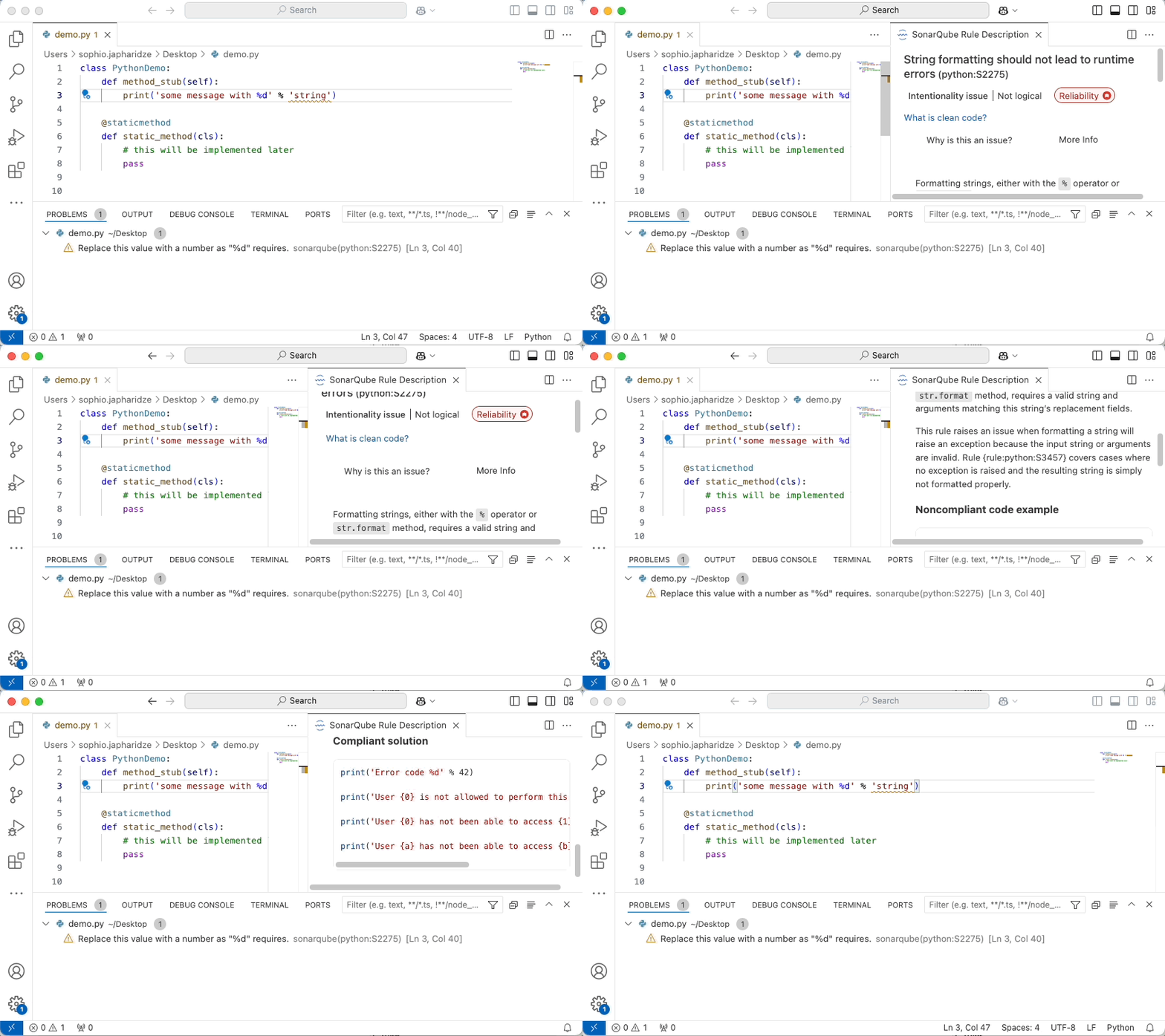
With Auto Save enabled in VS Code, SonarQube for IDE continuously analyzes the code while you type. Simply open any source file, start coding, and you will start seeing issues reported by SonarQube for IDE. Issues are highlighted in your code and also listed in the **PROBLEMS** panel.
You can access the detailed rule description directly from your editor, using the provided contextual menu.
## Analyze changed files
{% hint style="success" %}
This is a SonarQube for IDE Labs feature. Update your SonarQube for VS Code installation to the latest version, then sign up for IDE Labs to get early access to our newest features and help shape the future of SonarQube for IDE!
Open the **SONARQUBE FOR IDE LABS** panel from the right side of your **SONARQUBE** panel. See the [Investigating issues](/sonarqube-for-vs-code/using/investigating-issues.md#sonarqube-for-ide-labs) article for details.
{% endhint %}
Navigate to the **SOURCE CONTROL** > **Changes** view container and select the **Analyze Changed Files with SonarQube** () icon to trigger an analysis on all files changed since the last commit to ensure fewer issues reach your remote repository. This is especially useful if automatic analysis is disabled for your development project. It can be your last check on changes you made before creating a pull request.
## Analyze C and C++ code
### Prerequisites
To analyze C and C++ code, you need to satisfy both of these conditions:
1. **Generate a compilation database** and
2. be on one of the **Supported environments**
See below for details.
### Generate a compilation database
[Compilation database](https://clang.llvm.org/docs/JSONCompilationDatabase.html) is a JSON file format introduced by the LLVM project. It contains the compile commands used to build a project. For instructions on how to generate a compilation database, choose the appropriate collapsible below. The preferred option is to use the build system.
{% hint style="info" %}
The C and C++ ecosystem is diverse. This documentation provides a general overview of how to set up your environment under common circumstances. If you need more assistance than we can provide here, please check if the compilation database is a feature in your extension, search the [SonarQube for VS Code Community forum](https://community.sonarsource.com/c/sl/vs-code/36) for details about your build system, and reach out with questions if you have any troubles.
{% endhint %}
Using the build system
**Generate a compilation database using the build system**
Many build systems support the automatic generation of compilation databases. For example:
* CMake by simply setting this option `CMAKE_EXPORT_COMPILE_COMMANDS`
* VS Code [Makefile Tools](https://devblogs.microsoft.com/cppblog/makefile-tools-december-2021-update-problem-matchers-and-compilation-database-generation/) extension
* Ninja by setting the `compdb` flag
* Xcode through Clang’s `-gen-cdb-fragment-path` feature:
```css-79elbk
# Add the following "OTHER_CFLAGS" option to the xcodebuild command
xcodebuild clean build OTHER_CFLAGS="\$(inherited) -gen-cdb-fragment-path \$(PROJECT_DIR)/CompilationDatabase"
# After the build, aggregate the fragments into "compile_commands.json"
cd CompilationDatabase && sed -e '1s/^/[\'$'\n''/' -e '$s/,$/\'$'\n'']/' *.json > ../compile_commands.json && cd ..
```
* Clang using the -MJ option. Note that this will generate a compilation database entry by input. The merge of all entries can be done through something like `sed -e '1s/^/[\'$'\n''/' -e '$s/,$/\'$'\n'']/' *.o.json > compile_commands.json`
When different choices are available, generating a compilation database through the build system should be preferred.
Using Sonar’s Build Wrapper
Build Wrapper is a tool developed by Sonar that generates a compilation database, capturing your build configuration at build time. To run Build Wrapper, you should prepend your clean build command with the Build Wrapper executable.
When you wrap your build command with the build wrapper, it will run the given command and gather all the configuration required for a correct analysis of C/C++/Objective-C projects such as macro definitions and include directories. The Build Wrapper does not impact your build; it merely monitors it and writes what it learns into files in a directory you specify. There is no need to build a second time without Build Wrapper.
You should download the build wrapper directly from SonarQube Cloud:
* [Download Build Wrapper for Linux](https://sonarcloud.io/static/cpp/build-wrapper-linux-x86.zip)
* [Download Build Wrapper for macOS](https://sonarcloud.io/static/cpp/build-wrapper-macosx-x86.zip)
* [Download Build Wrapper for Windows](https://sonarcloud.io/static/cpp/build-wrapper-win-x86.zip)
{% hint style="info" %}
These links redirect to the SonarQube Cloud CDN. Make sure your HTTP client follows redirects and does not forward your SonarQube Cloud credentials to the redirect target. If you're behind a corporate proxy or firewall, allow the [domain URLs for your SonarQube Cloud region](https://docs.sonarsource.com/sonarqube-cloud/appendices/networking-requirements#domain-urls-required-by-sonarqube-cloud), which cover the CDN.
{% endhint %}
Unzip the downloaded build wrapper and configure it in your PATH because doing so is just more convenient.
Execute build wrapper as a prefix to your usual clean build command. A clean build command should always build the project from scratch.
The examples below use `make`, `xcodebuild` and `MSBuild`, but any build tool that performs a full build can be used:
**Linux**
```bash
build-wrapper-linux-x86-64 --out-dir build_wrapper_output_directory make clean all
```
**macOS**
```bash
build-wrapper-macosx-x86 --out-dir build_wrapper_output_directory xcodebuild clean build
```
**Windows**
```bash
build-wrapper-win-x86-64.exe --out-dir build_wrapper_output_directory MSBuild.exe /t:Rebuild /nodeReuse:False
```
At the end of your build, a `compile_commands.json` file should be generated in the specified output directory.
{% hint style="warning" %}
All the files generated by Build Wrapper in the output directory contain a dump of the environment. Sharing these files, in some contexts, can be a security concern.
{% endhint %}
Using open-source wrappers
**Generate a compilation database using open-source wrappers**
In case the above options are not successful in generating a compilation database, some open-source wrappers can help. For example:
* [Bear](https://github.com/rizsotto/Bear)
* [Bazel compile commands extractor](https://github.com/hedronvision/bazel-compile-commands-extractor)
Using a custom script
**Generate a compilation database using a custom script**
A compilation database is simply a JSON file that describes how to compile a project. If none of the previous approaches are feasible, for example, in the case of an *internal build system*, writing a script that generates a compilation database to describe how source files are supposed to be compiled might be the best solution.
**Best practices**
* Make sure that the compilation database contains the actual compile commands. This can be checked by running the compilation commands inside the `compile_commands.json` and verifying that they succeed.
* The compilation database should not contain header files entries. We use internal heuristics to analyze header files
* Make sure that the compilation database is up to date. It should be refreshed as part of the development cycle.
If you do not use the Build Wrapper to generate a compilation database and the build relies on environment variables, make sure that they are set in the VS Code environment.
General recommendations
**Best practices**
* Make sure that the compilation database contains the actual compile commands. This can be checked by running the compilation commands inside the `compile_commands.json` and verifying that they succeed
* Make sure that the compilation database is up to date. It should be refreshed as part of the development cycle
* If the build system uses environment variables, make sure that they are set in the VS Code environment
* The compilation database should not contain header files entries. We use internal heuristics to analyze header files
### Supported environments Compilers
**Supported compilers**
* Any version of Clang, GCC, and Microsoft C/C++ compilers
* Any version of Intel compiler for Linux and macOS
* ARM5 and ARM6 compilers
* IAR compilers for ARM, Atmel AVR32, Atmel AVR, Renesas H8, Renesas RL78, Renesas RX, Renesas V850, Texas Instruments MSP430, and 8051
* QNX compilers
* Texas Instruments compilers on Windows and macOS for ARM, C2000, C6000, C7000, MSP430, and PRU
* Wind River Diab and GCC compilers
* Compilers based wholly on GCC, including, for instance, Linaro GCC, are also supported
Language standards
**Supported language standards**
C standards: C89, C99, C11, C17
C++ standards: C++03, C++11, C++14, C++17, C++20 and C++23.
GNU extensions
Runtime environments
**Supported runtime environments**
* Microsoft Windows on x86-64
* Linux on x86-64
* macOS with version 10.14.3 and later on x86-64
## Activating C and C++ Analysis
The analysis can be activated by simply pointing to a compilation database that describes the project to be analyzed. This can be done through a notification that pops up when a folder that contains a file named `compile_commands.json` is opened, or through the SonarQube for VS Code embedded action that lists all compilation database files in the folder, or by manually assigning the `sonarlint.pathToCompileCommands` option in the settings to the full path of the compilation database.
Note that the SonarQube for IDE embedded action can be used to switch the active compilation database.
## Troubleshooting C and C++ Analysis
#### Troubleshooting C and C++ Analysis
Check out the [Troubleshooting](/sonarqube-for-vs-code/resources/troubleshooting.md#c-and-c-analysis) examples in the Resources section.
### Analyze JavaScript and TypeScript
If you’re experiencing issues when analyzing TypeScript or TypeScript, check this [Troubleshooting](/sonarqube-for-vs-code/resources/troubleshooting.md#javascript-and-typescript-analysis) troubleshooting article about problems related to memory usage.
---
# Agent Instructions
This documentation is published with GitBook. GitBook is the documentation platform designed so that both humans and AI agents can read, navigate, and reason over technical content effectively. Learn more at gitbook.com.
## Querying This Documentation
If you need additional information that is not directly available in this page, you can query the documentation by asking a question.
Perform an HTTP GET request on the following URL with the `ask` and `goal` query parameters:
```
GET https://docs.sonarsource.com/sonarqube-for-vs-code/getting-started/running-an-analysis.md?ask=&goal=
```
`ask` is the immediate question: it should be specific, self-contained, and written in natural language.
`goal` is what the user is ultimately trying to achieve, the reason they need the answer. Sharing it helps GitBook give you a better, more relevant answer. A goal is most helpful when it describes the outcome the user wants rather than restating the question. For example, with `ask=how do I create an API token`, a goal like `automate deployments from our CI pipeline` lets GitBook tailor the answer to that use case.
The response will contain a direct answer to the question and relevant excerpts and sources from the documentation.
Use this mechanism when the answer is not explicitly present in the current page, you need clarification or additional context, or you want to retrieve related documentation sections.