> For the complete documentation index, see [llms.txt](https://docs.sonarsource.com/llms.txt). Markdown versions of documentation pages are available by appending `.md` to page URLs; this page is available as [Markdown](https://docs.sonarsource.com/sonarqube-for-vs-code/resources/troubleshooting.md).
# Troubleshooting
What to do when you have problems running an analysis in SonarQube for VS Code.
Knowing where to begin looking for information is the first step to reaching out for help. Many answers to commonly found problems can be found on the [SonarQube for IDE channel of the Sonar community forum](https://community.sonarsource.com/c/sl/11). See below for the basic steps to access the SonarQube for IDE logs when the analysis results are not what you expected.
Before posting to the Community, make sure that you have your logs ready by following the instructions below.
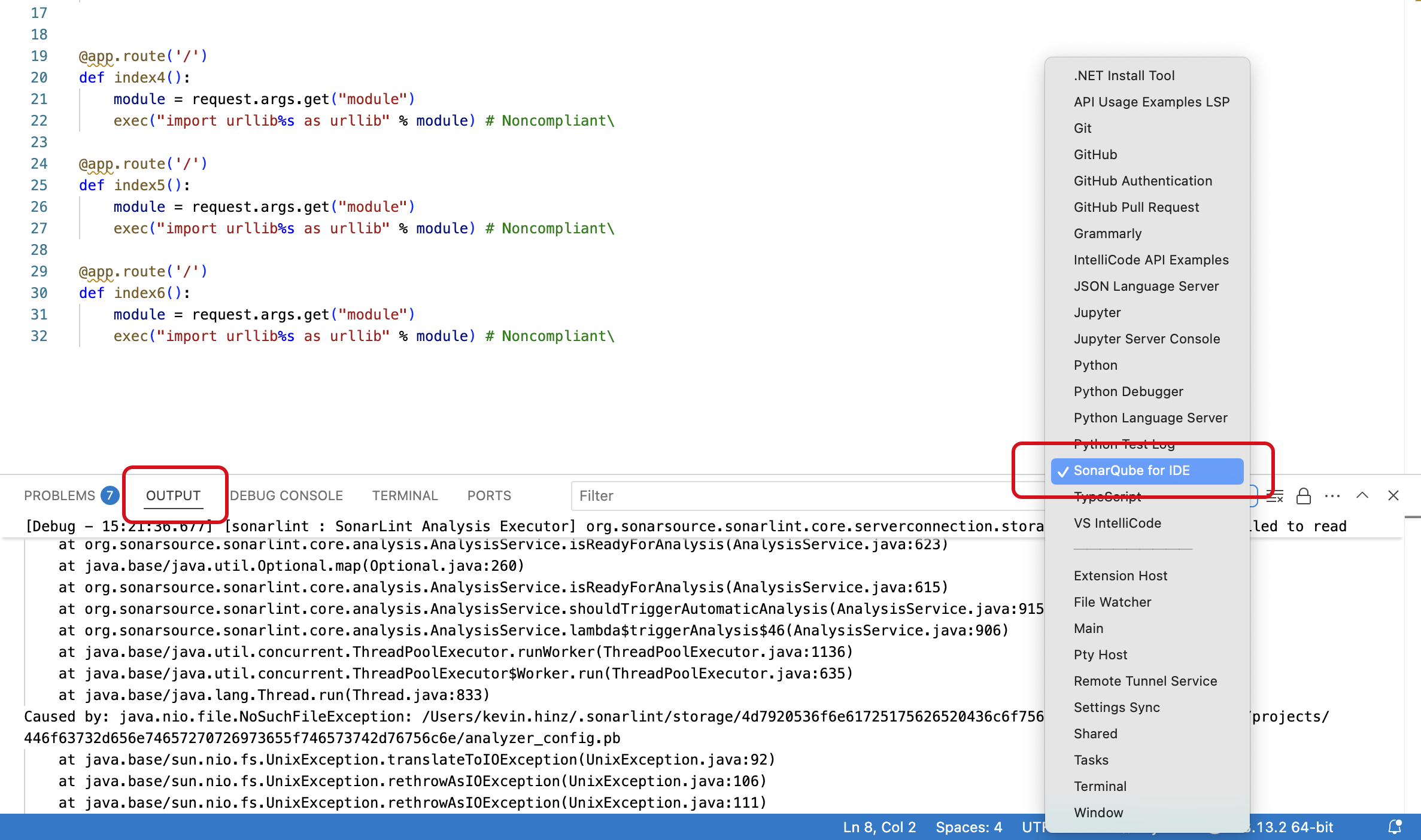
## How to get SonarQube for IDE logs
* Open the SonarQube for VS Code extension settings window: **Manage** () > **Settings** > **Extensions** > **SonarLint** (or **Code** > **Settings…** > **Settings \[⌘,]** in macOS)
* In the extension settings, enable the SonarLint > Output: **Show Verbose Logs** option.
* Then, switch the output in the VSCode console: **OUTPUT** > **SonarQube for IDE**
## How to get SonarQube for VS Code thread dumps
In some cases, it can be useful to extract thread dumps from the running instance of your IDE for debugging; thread dumps can help us investigate UI freeze issues or threading problems.
If SonarQube for IDE does not start or stops working and the IDE is still running, thread dumps are necessary to properly troubleshoot the problem *before the IDE is restarted*. If you restart the IDE, some information about what was happening when it failed will be lost. Fortunately, thread dumps are easy to obtain for both SonarQube for IDE and your IDE.
1. While SonarQube for VS Code is running, run `jps` in your terminal to see a list of process IDs (PID).
2. Note the PID of `sonarlint-ls.jar`.
3. Run `jstack <`*`PID`*`>` to get the thread dump.
Once obtained, please report your error to the [Community forum](https://community.sonarsource.com/c/sl/vs-code/36). Your thread dump may contain sensitive details and if it’s required for further troubleshooting, it will be possible to share your thread dump privately.
## The SonarQube Flight Recorder
SonarQube for IDE has a built-in flight recorder to help with troubleshooting by recording other system metrics. See the [Help](/sonarqube-for-vs-code/resources/help.md#the-sonarqube-flight-recorder) article for full details.
## The VS Code Developer Tools Console
In addition, the VS Code Developer Tools Console can provide more information when troubleshooting.
* Go to **Help** > **Toggle Developer Tools** > **Console** in VSCode
* Clear your console.
* Reproduce the issue you encountered and check the output.
* A screenshot of your error may be helpful when posting to the [SonarQube for VS Code community](https://community.sonarsource.com/c/sl/vs-code/36).
## Configuring your JRE
SonarQube for VS Code requires a JRE to run and it's typically downloaded if a correct version is not found locally. Check the [Requirements](/sonarqube-for-vs-code/getting-started/requirements.md#overview) on the *Requirements* page for full details on how this works.
Signs that you may not have an approved JRE include notifications such as `SonarLint Language Server client: couldn't create connection to server` and/or `Java 17 or more recent is required to run. Please download and install a recent JRE`.
It could be that your installation of SonarQube for VS Code may have inadvertently been updated to a *universal* version which does not include the embedded JRE. Ideally, you should install a platform-specific version that fulfills your system requirements.
How to check your installation:
* Open the SonarQube for IDE extension page within VS Code and hover your mouse over the **Size** attribute.
* You are all set if the installation path in the popup includes a platform identifier, for example, `win32-x64`, `linux-x64`, or `darwin-arm64`.
* If needed, select the **Size** attribute to open the containing folder (then look for the platform identifier).
*If those identifiers are missing, you may have to fix the installation.* Simply update to the latest SonarQube for VS Code version or, *if you really want to be certain it works*, uninstall and reinstall the extension to prompt the download of an approved JRE.
### Browser-based VS Code environments
In browser-based VS Code environments such as SAP Business Application Studio (BAS), Java auto-detection may fail even when a suitable JRE is installed, producing the same `Java 21 or more recent is required` error. Set `sonarlint.ls.javaHome` explicitly to point to your Java installation:
```json
{
"sonarlint.ls.javaHome": "/usr/lib/jvm/java-21-openjdk-amd64"
}
```
Replace the path with the actual Java installation path in your remote environment. To apply it, go to **Settings** > **Extensions** > **SonarLint** > **Sonarlint: Ls Java Home**, or open the command palette and run **Preferences: Open User Settings (JSON)** and add the entry above. See [Requirements](/sonarqube-for-vs-code/getting-started/requirements.md#overview) for full details on how `sonarlint.ls.javaHome` works.
## Troubleshooting your connected mode setup
### **No matching project found**
No matching project is found because:
* It’s best if you already have the project open in your IDE, otherwise SonarQube for IDE might not be able to find a matching file.
* SonarQube for IDE can get confused if you have more than one project open in different windows. Please close the non-applicable project and try again.
If these solutions don’t help, follow the instructions for [Connected mode setup](/sonarqube-for-vs-code/connect-your-ide/setup.md#project-binding) to manually configure your project binding.
### **No matching issue found**
SonarQube for IDE can’t find your issue because:
* You might not be on the same branch.
* The issue was fixed, or the source code may be different from the analyzed version.
## Troubleshooting unexpected analysis results
Sometimes, issues found on the server differ from those found locally by SonarQube for IDE. Usually, the server-side rule configuration (your quality profile) is to blame; however, it could be something more than that. Maybe your local build configuration and system dependencies don’t align with your DevOps pipeline, or it could simply be that the issue, due to its complexity, is only detectable by SonarQube Server or SonarQube Cloud.
The collapsible below lists some of the most commonly encountered reasons, along with some details that will help you troubleshoot discrepancies.
Why your local analysis might be different than found on the server
#### **Some issues might be detected by third-party analyzers**
SonarQube for IDE will only run rules from Sonar analyzers including [custom rules extending Sonar analyzers](https://docs.sonarsource.com/sonarqube-server/extension-guide/adding-coding-rules). Third-party analyzers usually have their own IDE integration, and there is no plan to run them inside of SonarQube for IDE.
#### **Your test files might be mistaken as source files**
Test files can be defined in SonarQube at either the project or global levels. In addition, test files can be defined in the IDE however, each IDE handles test files a bit differently:
* For example, SonarQube for Visual Studio does not distinguish between project and test code, and SonarQube for IntelliJ relies on the IDE to detect if a file is a test file. In the case where the IntelliJ IDE detects the test file for SonarQube for IntelliJ:
* *The file is under a test sources root*. Those roots can be manually created by users or automatically populated by the IDE by relying on the build system such as Maven or Gradle, for example.
* *The file is flagged as a test file by any plugin that you have installed*. The IDE bundles some internal plugins like the "JavaScript and TypeScript" plugin; these internal plugins can infer if a file should be considered as a test file. Third-party plugins can also infer test files, and SonarQube for IDE will recognize these as such.
Please review your IDE's page about [File exclusions](/sonarqube-for-vs-code/using/file-exclusions.md) and check these pages to define your analysis scope on the server:
* [Setting analysis scope](/sonarqube-server/2026.1/project-administration/adjusting-analysis/setting-analysis-scope.md) at the project level in SonarQube Server
* Setting your [Analysis scope](/sonarqube-cloud/managing-your-projects/project-analysis/setting-analysis-scope.md) at the project level in SonarQube Cloud
* [Setting analysis scope](/sonarqube-community-build/project-administration/adjusting-analysis/setting-analysis-scope.md) at the project level in SonarQube Community Build
#### **Some rules are too complex to run locally**
Some rules can report issues at the project level or require extensive resources to analyze, such as injection vulnerabilities and some advanced bug detection rules; such issues are not displayed in SonarQube for IDE, only in SonarQube (Server, Cloud). See the article on [Rules and languages](/sonarqube-for-vs-code/using/rules.md#unsupported-rules) for more detail.
Please check the [SonarQube for IDE roadmap](https://www.sonarsource.com/products/sonarqube/ide/roadmap/) for a list of features on the horizon.
#### **File or language types are not supported**
Check your IDE’s **Rules and languages** page for a list of supported languages and file types.
#### **The analyzer version may be different**
Improvements are constantly being made to the Sonar analyzers during the CI/CD development cycle. Depending on the product version you are running, you may have a different analyzer therefore, the results might be different.
* SonarQube Cloud is always running the latest analyzers.
* SonarQube Server and SonarQube Community Build runs the latest available analyzer at the time of its release.
* SonarQube for IDE runs the latest available analyzer at the time of its release.
* Sometimes SonarQube for IDE downloads and uses the same SonarQube Server or SonarQube Cloud analyzer when running in connected mode.
**Your project configuration may be different**
Discrepancies in C and C++ analysis may result from different project builds and system dependencies. For example, you might have one set up in your local build configuration and another set up for your CI build configuration (or the configuration created by Autoscan).
### There are no issues in your PROBLEMS panel
If you’re not seeing issues in your **PROBLEMS** panel, and the logs suggest that there is some sort of data corruption, it’s possible that the SonarQube for IDE issue storage was corrupted and the cache needs to be cleared.
To fix this, you can delete these folders and reload the IDE window:
* `~/.sonarlint/.sonarlinttmp*`
* `~/.sonarlint/storage/h2`
## Language-specific examples C and C++ Analysis
#### General C and C++ troubleshooting
In case the analysis is not working or obvious false positives are raised, here are the recommended actions in order:
1\. **Investigate the logs**:
* First, enable the `Verbose Logs` and look if there is any error or failures that indicate what went wrong.
* Check the [Troubleshooting](/sonarqube-for-vs-code/resources/troubleshooting.md) page for instructions to enable these logs.
2\. **Make sure that the compilation database is credible**:
* Check that the compilation database is up to date. It shouldn't contain outdated commands or point to files that no longer exist. If you use CMake, the [CMake Tools extension's `cmake.configureOnEdit` option](https://github.com/microsoft/vscode-cmake-tools/blob/main/docs/cmake-settings.md#cmake-settings) can regenerate it automatically whenever `CMakeLists.txt` changes.
* Make sure that the compilation database contains the actual compilation commands. This can be done by running the `commands` inside the `compile_commands.json` and verifying that they succeed.
* Make sure that the VS Code environment has the environment variables required to build the project.
3\. **Enable Rule \`S2260\`**:
* In case of obvious false positives in the raised issues, enable the `cpp:S2260` or `c:S2260` rule and check if it raises issues in the culprit file. This rule indicates that the analyzer failed to parse part of the code and might give hints or indicate a configuration problem.
* If it raises issues, follow the rule description to fix your code; if not, move to the step in troubleshooting.
4\. **Generate the CFamily reproducer File and Report the Issue**:
* When none of the previous suggestions work, please report the problem you encountered in the [Sonar community](https://community.sonarsource.com/).
* In case of a false positive or an analysis failure, we need the CFamily reproducer file to investigate the issue. To generate the reproducer file, add the following analyzer option to the `settings.json`:
* `"sonarlint.analyzerProperties": {"sonar.cfamily.reproducer" : "C:\\replace\\by\\path\\to\\file.cpp"}`
* The `sonar.cfamily.reproducer` should point to the source or header file on which you face the issue. After setting that option, trigger the analysis on the culprit file. You should see in the logs that a file name `sonar-cfamily.reproducer` is generated in a temporary directory. Upload that file in your community report or ask us to share it privately if it contains sensitive information.
JavaScript and TypeScript analysis
#### **Performance issues**
When analyzing JavaScript/TypeScript files that don't belong to a `tsconfig.json` file (referred to as 'orphan' files), you might encounter performance issues such as the analyzer stalling or consuming excessive memory. This might occur because SonarQube is creating a large number of TypeScript Programs for these orphan files, a situation indicated by log messages like "No tsconfig found for files, using default options …"
To resolve this, try setting the `sonar.javascript.createTSProgramForOrphanFiles` flag to `false` (the default setting is `true`) to create these programs. Changing it to `false` is recommended when performance issues are observed.
This new, more targeted solution replaces the older property, `sonar.javascript.sonarlint.typechecking.maxfiles`, which has been removed.
C# analysis
#### **No issues are reported when .NET 10 or higher SDK is installed**
When .NET 10 or higher is installed, OmniSharp may fail to initialize its MSBuild component and report no issues, even if your project targets an earlier .NET version.
To work around this, set the `sonar.cs.internal.msBuildPath` analysis property to the path of a supported .NET SDK installation, for example `.../sdk/8.0.xxx`. Set this property in the SonarQube for IDE plugin settings in your IDE.
## Open in IDE
Using Open in IDE with VS Code and WSL
**Troubleshooting Open in IDE with WSL**
The **Open in IDE** feature from SonarQube Server and Cloud tries to access , where \ is between 64120 and 64130. If you are developing in Windows Subsystem for Linux (WSL), the SonarQube for IDE language server is running within WSL and not on Windows therefore, the connection fails. See the [Investigating issues](/sonarqube-for-vs-code/using/investigating-issues.md#opening-issues-in-the-ide) article for more information about how the feature works normally.
In WSL2, there is a new network mode: mirrored. This mode tells WSL to “share” the network connections with Windows which allows Open in IDE to work as expected.
You need to have a file called .wslconfig in your Windows home directory that contains the following:
```editorconfig
[wsl2]
networkingMode=mirrored
```
Restart after running the distribution.
More information about this setting is [available from Microsoft](https://learn.microsoft.com/en-us/windows/wsl/wsl-config#configuration-settings-for-wslconfig).
## FAQ
**Are my SonarScanner properties applied to SonarQube for IDE?**
No. Scanner properties you may have defined in the `sonar-project.properties` or `pom.xml` files (for example `sonar.sources` or `sonar.projectBasedir`) only make sense when using the SonarScanner in the command line. SonarQube for IDE tries to use IDE metadata to avoid other configurations.
If you want to share some configuration between SonarScanners and SonarQube for IDE, like [File exclusions](/sonarqube-for-vs-code/using/file-exclusions.md) or some specific analyzer properties (see [Scan my project](/sonarqube-for-vs-code/using/scan-my-project.md)), the best way is to use [Connected mode](/sonarqube-for-vs-code/connect-your-ide/connected-mode.md) and set the configuration in the SonarQube quality profile.
---
# Agent Instructions
This documentation is published with GitBook. GitBook is the documentation platform designed so that both humans and AI agents can read, navigate, and reason over technical content effectively. Learn more at gitbook.com.
## Querying This Documentation
If you need additional information that is not directly available in this page, you can query the documentation by asking a question.
Perform an HTTP GET request on the following URL with the `ask` and `goal` query parameters:
```
GET https://docs.sonarsource.com/sonarqube-for-vs-code/resources/troubleshooting.md?ask=&goal=
```
`ask` is the immediate question: it should be specific, self-contained, and written in natural language.
`goal` is what the user is ultimately trying to achieve, the reason they need the answer. Sharing it helps GitBook give you a better, more relevant answer. A goal is most helpful when it describes the outcome the user wants rather than restating the question. For example, with `ask=how do I create an API token`, a goal like `automate deployments from our CI pipeline` lets GitBook tailor the answer to that use case.
The response will contain a direct answer to the question and relevant excerpts and sources from the documentation.
Use this mechanism when the answer is not explicitly present in the current page, you need clarification or additional context, or you want to retrieve related documentation sections.