> For the complete documentation index, see [llms.txt](https://docs.sonarsource.com/llms.txt). Markdown versions of documentation pages are available by appending `.md` to page URLs; this page is available as [Markdown](https://docs.sonarsource.com/sonarqube-cloud/administering-sonarcloud/integrations/jira-cloud.md).
# Connecting your organization to Jira Cloud
To integrate SonarQube Cloud with Jira Cloud, you must first connect your SonarQube Cloud organization with your Jira Cloud instance.
*The Jira Cloud integration is available in the Team and Enterprise plans. For more information about this integration, see* [Jira Cloud](/sonarqube-cloud/discovering-sonarcloud/integrations/jira-cloud.md)*.*
## Before you start
{% hint style="info" %}
Before setting up the connection to Jira Cloud, we recommend that you read first [Jira Cloud](/sonarqube-cloud/discovering-sonarcloud/integrations/jira-cloud.md#integration-solution-overview).
{% endhint %}
To connect your SonarQube Cloud organization to your Jira Cloud instance, you must be an admin of the organization. During the setup, you will authenticate to Atlassian (if not already done). You must use an Atlassian account that:
* Is a member of the Jira Cloud instance to be connected.
* Is a member of the existing and future projects to be connected within that instance with the following permissions: `read:jira-work`, `manage:jira-configuration`, `write:jira-work`.
{% hint style="info" %}
The Atlassian account used to connect your SonarQube organization to your Jira Cloud instance becomes the default reporter for all Jira work items created from this organization.
{% endhint %}
{% stepper %}
{% step %}
#### Connect your SonarQube organization to your Jira Cloud instance
1. Retrieve your organization. For more information, see [Retrieving your organizations](/sonarqube-cloud/getting-started/viewing-organizations.md).
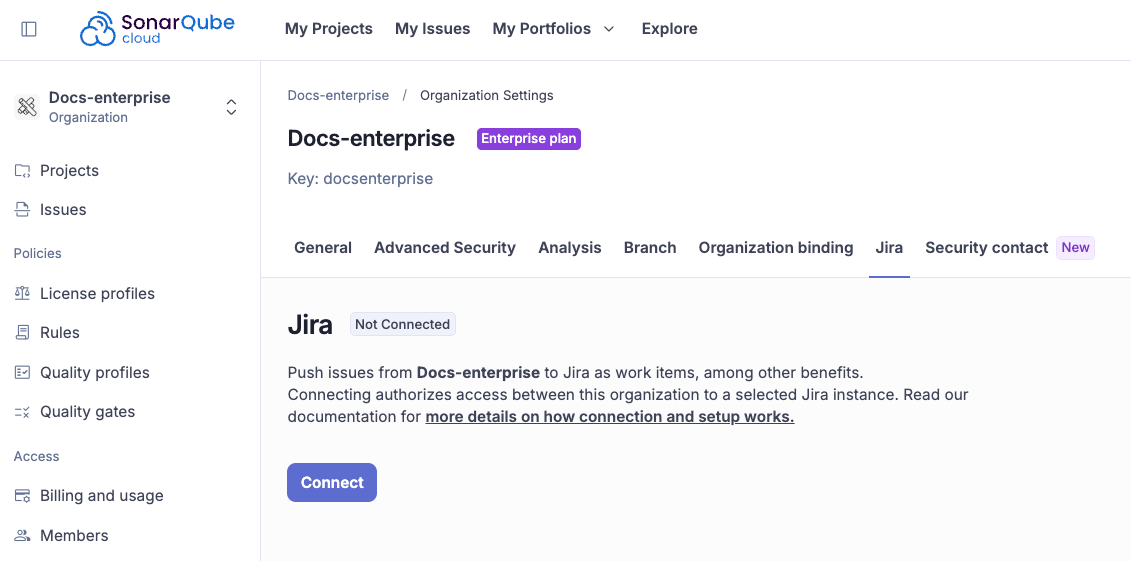
2. Go to **Administration** > **Organization settings** > **Jira.**
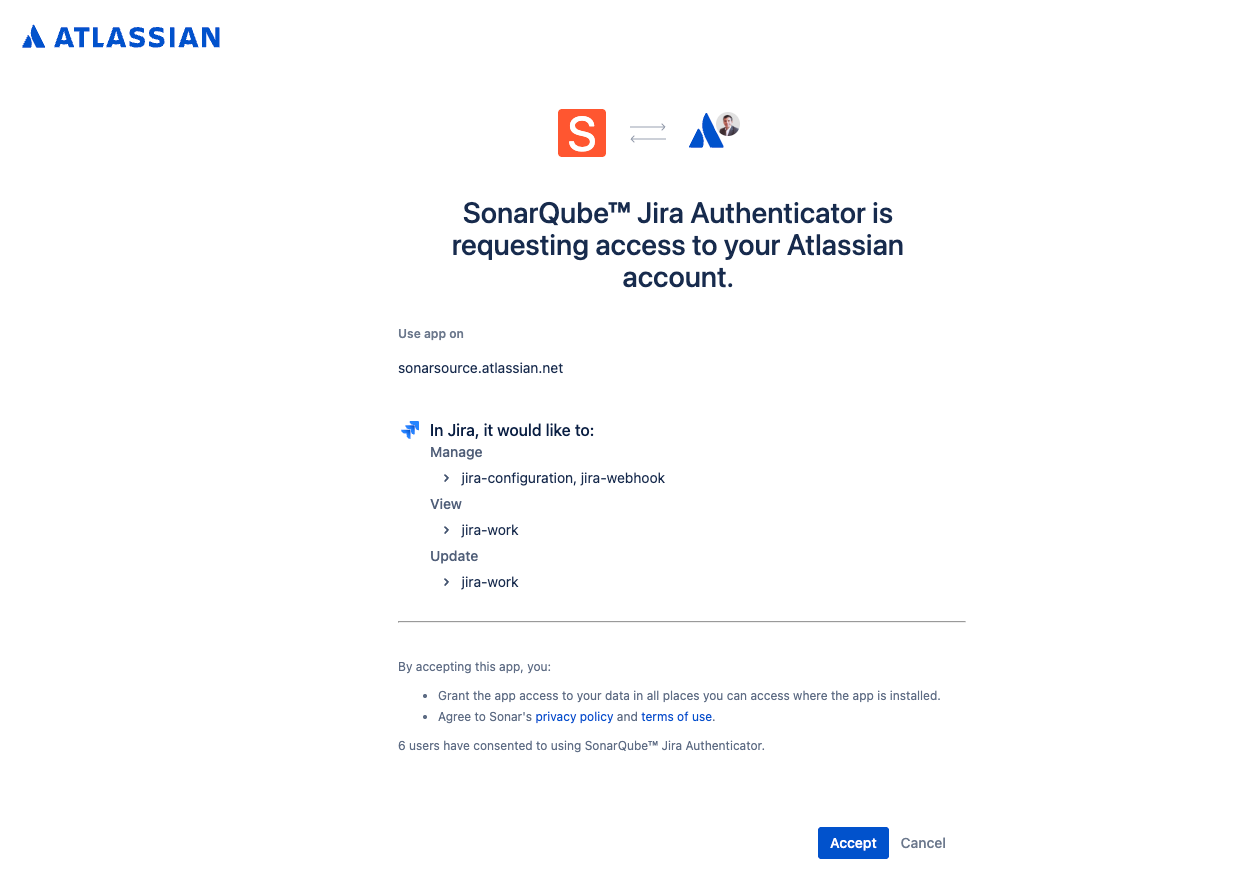
3. Click **Connect.** You will be redirected to the Atlassian authorization page for 3rd party vendors. Follow the instructions and if you have multiple Jira Cloud instances, make sure to select the right instance.
4. Click **Accept** to authorize the connection. You are redirected back to SonarQube Cloud.
{% endstep %}
{% step %}
#### Allow project admins to connect their project
If you want to enable project administrators to connect their projects to Jira, you must first enable the corresponding option within your SonarQube Cloud organization.
{% hint style="warning" %}
All Jira operations performed from the SonarQube Cloud organization are performed on behalf of the organization admin's Atlassian account. When users connect a project or push issues, they might see Jira spaces and create Jira work items in spaces where they lack permissions in Jira Cloud. To mitigate this security concern, only organization administrators are allowed to connect SonarQube Cloud projects to Jira by default.
{% endhint %}
To allow project admins to connect their project to Jira Cloud:
* Go to **Administration** > **Organization settings** > **Jira**
* Toggle on **Grant project administrators binding permissions**.
The project admins within your organization can now connect their SonarQube projects to Jira Cloud spaces. See [Connecting your project to Jira Cloud](/sonarqube-cloud/managing-your-projects/administering-your-projects/integrations/jira-cloud.md) for more information.
{% endstep %}
{% endstepper %}
## Reauthorizing the connection to Jira Cloud
You may have to reauthorize the connection of your SonarQube Cloud organization to your Jira Cloud instance in the following cases:
* The administrator who performed the connection has left your organization.
* In the unlikely event that your organization doesn’t use any features of the Jira Cloud integration for three months (for example, if there are no projects connected for a given organization), the connection to Jira will expire.
Reauthorizing your organization is non-destructive, which means that connections to all projects and issues will remain intact.
{% hint style="warning" %}
When reauthorizing, always ensure you select the same Jira Cloud instance on the Atlassian authorization page to avoid potential errors. See [#troubleshooting](#troubleshooting "mention") for more information.
{% endhint %}
To reauthorize your organization connection to Jira Cloud, you must be an admin of the organization. Proceed as follows:
1. Go to *Your Organization* > **Administration** > **Organization settings** > **Jira**.
2. Click **Reauthorize**.
## Deleting the connection to Jira Cloud
By deleting the SonarQube to Jira Cloud connection, you will:
* Lose access to all Jira features in this SonarQube Cloud organization.
* Delete this organization’s project to Jira Cloud space connections.
* Disconnect all SonarQube issues from Jira work items.
{% hint style="warning" %}
You will not be able to restore this data after reconnecting the organization.
{% endhint %}
To delete your organization connection to Jira Cloud:
1. In SonarQube Cloud, go to *Your Organization* > **Administration** > **Organization settings** > **Jira**.
2. Select the delete icon.
3. In your Atlassian account, the account used to connect your organization to Jira, remove the access to the SonarQube Cloud app:
1. Open the **Connected apps** tab of the Atlassian account and navigate to the app.
2. Select **Remove access** and confirm.
## Troubleshooting
The following are the typical errors that might prompt you to troubleshoot the connection to Jira:
* The administrator who set up the connection has left the company and the access to the SonarQube Cloud app for Jira Cloud has been removed from their Atlassian account.\
**Solution**: The new administrator has to reauthorize the Jira connection at the organizational level. See [#reauthorizing](#reauthorizing "mention") for more information.
* The connection has been reauthorized with a wrong Jira instance.\
**Solution**: Make sure to select the correct Jira instance on the Atlassian authorization page when reauthorizing the Jira connection at the organization level. SonarQube remembers previous issue-to-Jira work item connections on the project levels, but the organization has to be reauthorized to the original Jira instance for these connections to be available again. See [#reauthorizing](#reauthorizing "mention") for more information.
* Some Jira work types cannot be selected on the project settings page for Jira.\
**Solution**: Jira work types that have other mandatory fields associated with them are not supported and are disabled in SonarQube. You can either remove these mandatory fields in Jira or choose a supported work type in SonarQube.
Other issues:
* The **Push to Jira** button is not visible on the SonarQube issue page.\
**Solution**: After connecting your organization to a Jira instance you need to connect individual SonarQube projects to Jira spaces. See [Connecting your project to Jira Cloud](/sonarqube-cloud/managing-your-projects/administering-your-projects/integrations/jira-cloud.md) for more information.
* The Jira release widget does not show any insights, even though your team is operating under a version-based release cycle.\
**Solution:** Ensure you have releases and versions enabled in your Jira space. See more on [Atlassian’s webpage](https://support.atlassian.com/jira-software-cloud/docs/enable-releases-and-versions/).
## Related pages
* [Jira Cloud](/sonarqube-cloud/discovering-sonarcloud/integrations/jira-cloud.md) (integration overview)
* [Connecting your project to Jira Cloud](/sonarqube-cloud/managing-your-projects/administering-your-projects/integrations/jira-cloud.md)
* [Pushing issues to Jira](/sonarqube-cloud/managing-your-projects/issues/pushing-issues-to-jira.md)
---
# Agent Instructions
This documentation is published with GitBook. GitBook is the documentation platform designed so that both humans and AI agents can read, navigate, and reason over technical content effectively. Learn more at gitbook.com.
## Querying This Documentation
If you need additional information that is not directly available in this page, you can query the documentation by asking a question.
Perform an HTTP GET request on the following URL with the `ask` and `goal` query parameters:
```
GET https://docs.sonarsource.com/sonarqube-cloud/administering-sonarcloud/integrations/jira-cloud.md?ask=&goal=
```
`ask` is the immediate question: it should be specific, self-contained, and written in natural language.
`goal` is what the user is ultimately trying to achieve, the reason they need the answer. Sharing it helps GitBook give you a better, more relevant answer. A goal is most helpful when it describes the outcome the user wants rather than restating the question. For example, with `ask=how do I create an API token`, a goal like `automate deployments from our CI pipeline` lets GitBook tailor the answer to that use case.
The response will contain a direct answer to the question and relevant excerpts and sources from the documentation.
Use this mechanism when the answer is not explicitly present in the current page, you need clarification or additional context, or you want to retrieve related documentation sections.