> For the complete documentation index, see [llms.txt](https://docs.sonarsource.com/llms.txt). Markdown versions of documentation pages are available by appending `.md` to page URLs; this page is available as [Markdown](https://docs.sonarsource.com/sonarqube-for-eclipse/using/rules.md).
# Rules and languages
The rules and languages supported by SonarQube for Eclipse.
The Sonar rules catalog is the entry point where you can discover all the existing rules. While running an analysis, SonarQube for IDE raises an issue every time a piece of code breaks a coding rule. Software quality classification and severity show the impact of the issue on your code. To see a full list of Sonar rules, check the **Rules** page of your SonarQube Server instance or in your SonarQube Cloud organization.
See the [Software qualities](/sonarqube-for-eclipse/using/software-qualities.md) page for more information about these classifications.
## Overview
SonarQube for Eclipse provides analysis for several languages. Support for your language may vary depending on the SonarQube for Eclipse version you’re running.
 **Supported out of the box**: SonarQube for IDE automatically checks your code in these languages and formats.\
 **Connected mode required**: Running in [Connected mode](/sonarqube-for-eclipse/connect-your-ide/connected-mode.md) with SonarQube (Server, Cloud) unlocks analysis for these languages and formats.
| Language | |
| ----------------------- | --------------------------------------------------------------------------------------------------------------------------------------------------------------------------------------------------------------------------------------- |
| Abap rules |  |
| Apex rules |  |
| C rules |  |
| C++ rules |  |
| COBOL rules |  |
| CSS rules |  |
| HTML rules |  |
| Java rules |  |
| JavaScript rules |  |
| JCL rules |  |
| Kotlin rules |  |
| PHP rules |  |
| PL/I rules |  |
| PL/SQL rules |  |
| Python rules |  |
| RPG rules |  |
| Ruby rules |  |
| Scala rules |  |
| Secrets detection rules |  |
| T-SQL rules |  |
| TypeScript rules |  |
| XML rules |  |
The full list of available rules can be found in the Eclipse settings menu. See the article below about [#using-sonar-rules](#using-sonar-rules "mention") for details. Open the [#supported-language-version](#supported-language-version "mention") expandable to learn how to see which versions are supported for a given language.
Supported language version
SonarQube for Eclipse provides analysis for several languages. Support for your language may vary depending on the SonarQube for Eclipse version you’re running.
For language-specific properties and supported language versions, refer to the relevant language pages in the SonarQube docs directly; the same Sonar language analyzers are used by SonarQube for Eclipse.
* [Languages](/sonarqube-server/2026.1/analyzing-source-code/languages.md) in SonarQube Server
* [Languages](/sonarqube-cloud/analyzing-source-code/languages.md) in SonarQube Cloud
* [Languages](/sonarqube-community-build/analyzing-source-code/languages.md) in in SonarQube Community Build
There are commercial-level rules available in SonarQube Cloud (all plans) and SonarQube Server. For these rules to appear in SonarQube for IDE, it must be in connected mode. See [#commercial-level-rules](#commercial-level-rules "mention") for more information.
For more details about languages and new features under consideration for the Eclipse IDE, you can refer to the [SonarQube for IDE roadmap](https://portal.productboard.com/sonarsource/4-sonarqube-for-ide/tabs/8-under-consideration) where we list all of our coming soon and newly released features.
## Sonar Rule Descriptions
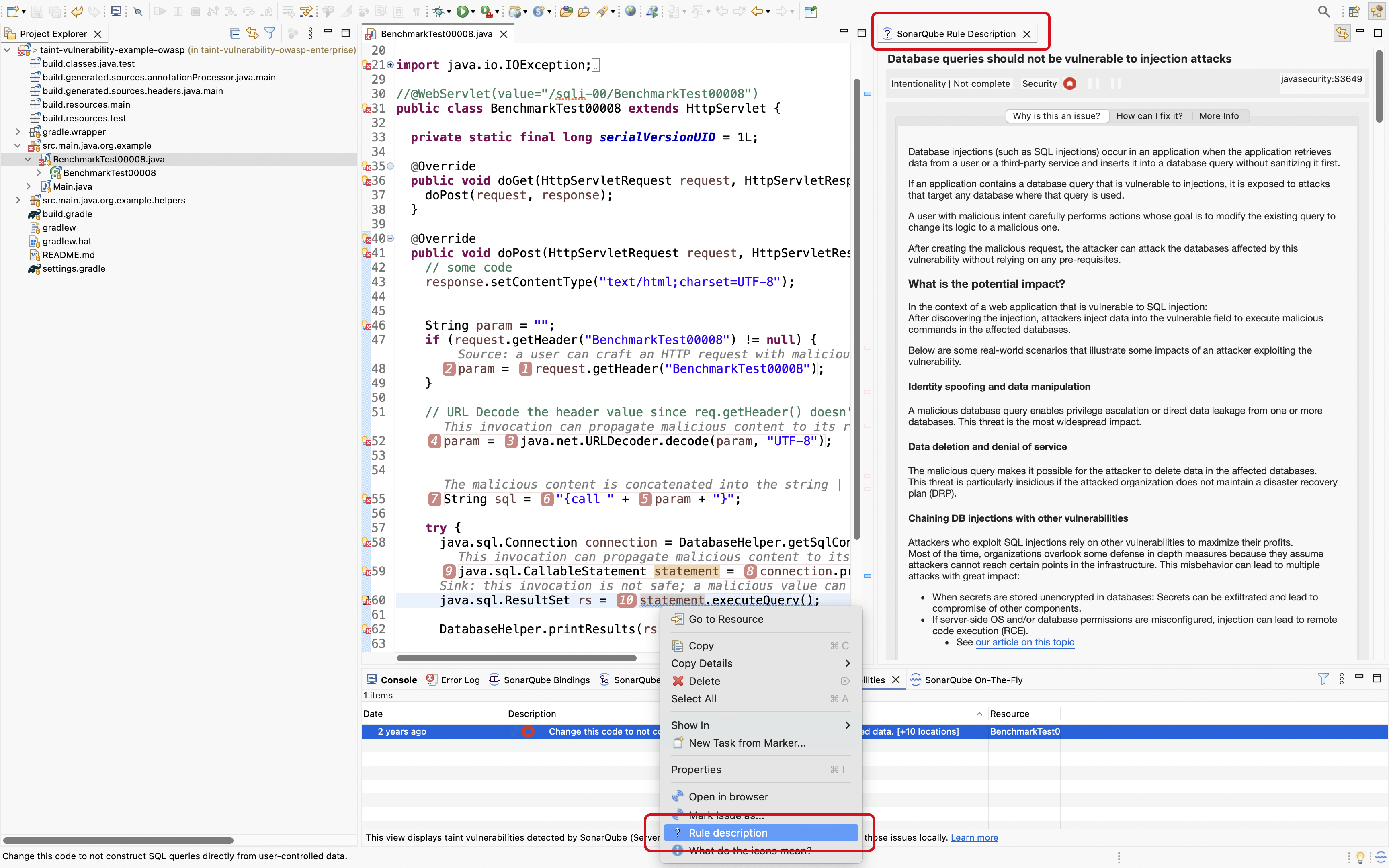
The **SonarQube Rule Descriptions** view is usually your first step in identifying why you have an issue. Right-clicking on any issue in a SonarQube for Eclipse view, or exposing the tooltip and selecting **Open description of rule…** in the code editor will open the **SonarQube Rule Descriptions** view.
The Rule Descriptions include information about why this causes an issue and noncompliant/compliant code snippets are usually offered. More serious issues such as security hotspots and injection vulnerabilities often include information about why it’s an issue and what is the potential impact.
SonarQube for Eclipse supports syntax highlighting; its availability is dependent on the Eclipse version and plugins you have installed; note that [JDT](https://www.eclipse.org/jdt/) is required for Java syntax highlighting. Currently, syntax highlighting for Java and C / C++ languages are available.
Syntax highlighting is not available for languages accessed with external plugins, but an extension point is provided to plugin developers. More information on extension points will be coming soon…
### Understanding issues in your IDE
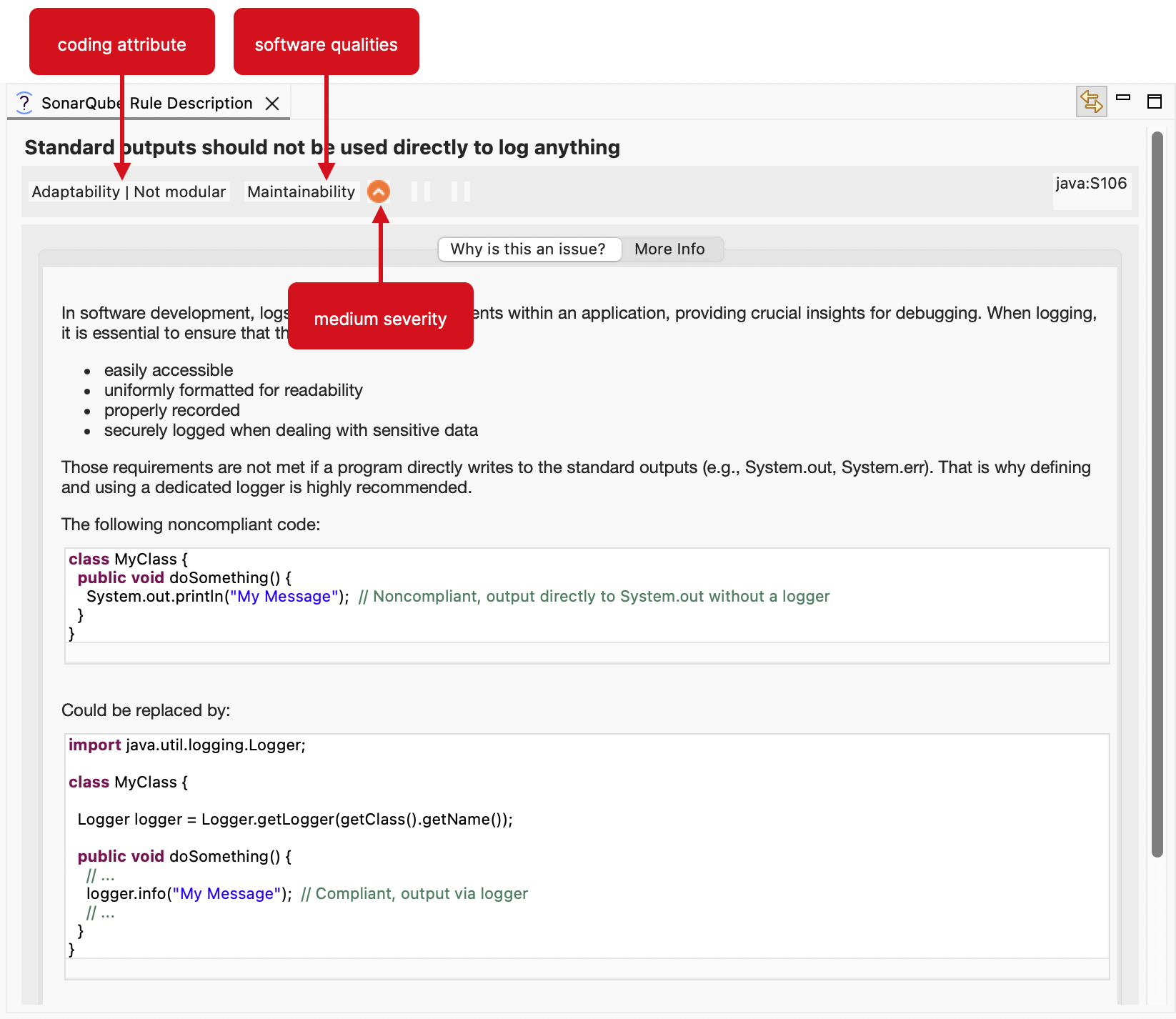
An issue’s coding attribute, software qualities, and severity are presented to you when opening the **SonarQube** **Rule Description** view. Below the rule title, you will find the coding attributes that highlight an issue’s classification. Check the [SonarQube glossary](/sonarqube-for-eclipse/resources/glossary.md) page for details about coding attributes, and the [Software qualities](/sonarqube-for-eclipse/using/software-qualities.md) page to better understand software qualities for more details about how they help classify your issue.
**When in connected mode**
If you’re running SonarQube for Eclipse while in connected mode *with SonarQube Server or SonarQube Community Build*, your view will change according to the server settings. Standard Experience mode encompasses the use of rule types such as bugs, code smells, and vulnerabilities. Alternatively, if SonarQube Server is set to Multi-Quality Rule mode, you will more accurately represent the impact an issue has on all software qualities.
Please see the pages about the MQR mode and Standard Experience for detailed information about the available rule modes for your instance:
* [Choosing a mode for your instance](/sonarqube-server/2026.1/instance-administration/analysis-functions/instance-mode.md) in SonarQube Server
* [Choosing a mode for your instance](/sonarqube-community-build/instance-administration/analysis-functions/instance-mode.md) in SonarQube Community Build
## Language-specific requirements
See the [Requirements](/sonarqube-for-eclipse/getting-started/requirements.md#language-specific-requirements) on the [Requirements](/sonarqube-for-eclipse/getting-started/requirements.md) page.
## Other rule types
DBD rules
Dataflow bugs are a set of *complex Python and Java bugs that are only detected when reviewing all feasible execution paths.* This type of issue can cause runtime errors and crashes in Python and Java. If you want to learn more, check out [our blog post](https://www.sonarsource.com/blog/sonarqube-99-lts-python-developers/#new-bugdetection-rules-track-dataflow-with-symbolic-execution) for a good explanation with an example.
Dataflow Bug Detection (DBD) rules for Python and Java are supported in [Commercial editions of SonarQube Server](https://www.sonarsource.com/products/sonarqube/downloads/) and by [SonarQube Cloud](https://www.sonarsource.com/products/sonarqube/cloud/). At this time, SonarQube for Eclipse supports DBD detection for Java and Python when running in connected mode with SonarQube Server Active Versions or SonarQube Cloud.
Injection vulnerabilities
Security vulnerabilities requiring taint engine analysis ([Injection vulnerabilities](/sonarqube-for-eclipse/using/taint-vulnerabilities.md)) are only available in connected mode because SonarQube for IDE pulls them from SonarQube (Server, Cloud) following a project analysis.
To browse injection vulnerabilities in SonarQube for Eclipse, set up [Connected mode](/sonarqube-for-eclipse/connect-your-ide/connected-mode.md) with your SonarQube Server or SonarQube Cloud instance. Once a [Connected mode setup](/sonarqube-for-eclipse/connect-your-ide/setup.md#project-binding) is configured, SonarQube for Eclipse will synchronize with the SonarQube (Server, Cloud) to report the detected injection vulnerabilities.
More information about security-related rules is available in the server documentation:
* [Security-related rules](https://docs.sonarsource.com/sonarqube-server/2025.4/user-guide/rules/security-related-rules) in SonarQube Server
* [Security-related rules](https://docs.sonarsource.com/sonarqube-cloud/digging-deeper/security-related-rules) in SonarQube Cloud
Security hotspots
SonarQube for Eclipse does not detect security hotspots on its own, and does not report the hotspots found by SonarQube Cloud. However, SonarQube’s **Open in IDE** feature will open one hotspot at a time in Eclipse and show them in the **SonarQube Security Hotspots** view window.
Please see the SonarQube for Eclipse documentation on [Security hotspots](/sonarqube-for-eclipse/using/security-hotspots.md) for more details, and the Investigating issues page to learn about [Investigating issues](/sonarqube-for-eclipse/using/investigating-issues.md#opening-issues-in-the-ide) using the **Open in IDE** feature.
Secrets detection
Secrets are pieces of user-specific or system-level credentials that should be protected and accessible to legitimate users only. SonarQube for Eclipse detects exposed Secrets in your source code and language-agnostic config files. When running in connected mode, the SonarQube quality profiles are applied to locally detected Secrets.
Commercial-level rules
There are commercial-level rules that are only available in SonarQube Cloud (all plans) and SonarQube Server. The list of Sonar rules available found on the **Rules** page of your SonarQube Server Developer, Enterprise, and Data Center editions or in your SonarQube Cloud organization may be different than what you see in the IDE.
In order for these rules to appear in SonarQube for IDE, you must be running in [Connected mode](/sonarqube-for-eclipse/connect-your-ide/connected-mode.md). In the standalone mode these rules are not visible.
Commercial-level rules are not available in SonarQube Community Build.
## Using Sonar rules
When not running in connected mode (also known as *standalone mode*), all Sonar rules for your language can be configured in the IDE. In addition, some Sonar rules have parameters that you can modify. Here are a few reasons you might want to edit a rule locally:
* Disable a rule that is enabled by default. Maybe the rule doesn't apply to your specific project. See [#rule-selection](#rule-selection "mention") for more information.
* Enable a rule that is disabled by default. By reviewing which rules are disabled, you might notice that some rules could be useful in the context of your project. See [#rule-selection](#rule-selection "mention") for more information.
* To improve a rule. In some cases rules have parameters. For example, regarding cognitive complexity, you can customize the threshold at which the rule will raise issues. See [#edit-rules](#edit-rules "mention") for more information.
### Rule selection
The full list of available rules is found by navigating to the Eclipse **Settings…** > **SonarQube** > **Rules Configuration** page in the **Preferences** window. There, Sonar Rules can individually be toggled on or off while running SonarQube for IDE in standalone mode; simply select or deselect the appropriate checkbox. See the screenshot below in [#edit-rules](#edit-rules "mention") to understand what it looks like in the settings window.
When your project is bound to SonarQube Server or SonarQube Cloud using [Connected mode](/sonarqube-for-eclipse/connect-your-ide/connected-mode.md), the rule set is managed on the server side as defined by the quality profile. See [#applying-rules-while-in-connected-mode](#applying-rules-while-in-connected-mode "mention"), for details.
## Edit rules
To edit a rule in SonarQube for Eclipse, navigate to the Eclipse **Settings…** > **SonarQube** > **Rules Configuration** page and select the rule you want to edit. Select or deselect any rule in the list to enable or disable it. If a rule has options, you’ll see them at the bottom of the rule description.
1. Navigate to the **Rules Configuration** tab.
2. Set your visibility filter, if desired, and select the rule you want to modify.
3. Look for **Parameters** at the bottom of the rule description. In this example, `giraffes` are added to the list of at-rules to ignore in rule css:S4662.
{% hint style="info" %}
When a project is bound to a SonarQube project, the configuration in this UI location is ignored. In this case, the rules configuration from the server applies. For more information, see the server documentation about quality profiles:
* [Managing quality profiles](/sonarqube-cloud/standards/managing-quality-profiles.md) in SonarQube Cloud
* [Managing quality profiles](/sonarqube-server/2026.1/quality-standards-administration/managing-quality-profiles.md) in SonarQube Server
{% endhint %}
## **Unsupported rules**
Some rules are simply too advanced to run locally, in SonarQube for IDE. Because some rules report issues at the project level, apply to the architecture of your code base, or require extensive resources to analyze, they are not included when SonarQube for IDE runs an analysis. Unsupported rule types include architecture, injection vulnerabilities, and some advanced bug detection rules.
However, these advanced issues will be reported in the IDE when you are running in connected mode with SonarQube. See these links for more information:
* Sonar [https://app.gitbook.com/s/B4UT2GNiZKjtxFtcFAL7/architecture](https://app.gitbook.com/s/B4UT2GNiZKjtxFtcFAL7/architecture "mention") in SonarQube Cloud
* [Injection vulnerabilities](/sonarqube-for-eclipse/using/taint-vulnerabilities.md) in SonarQube for VS Code
* [#commercial-level-rules](#commercial-level-rules "mention") and [#dbd-rules](#dbd-rules "mention")
## Rules while in Connected Mode
Connected Mode syncs your SonarQube Server or SonarQube Cloud Quality Profile with the local analysis to suppress issues reported in the IDE. Therefore, when running in Connected Mode, SonarQube for Eclipse will ignore rule settings that are defined locally. See the [Connected mode](/sonarqube-for-eclipse/connect-your-ide/connected-mode.md) page for more information about running connected mode and the [Connected mode](/sonarqube-for-eclipse/connect-your-ide/connected-mode.md#benefits) it brings when working in teams.
### Edit rules in connected mode
If you’re running in [Connected mode](/sonarqube-for-eclipse/connect-your-ide/connected-mode.md) with SonarQube, you can share customized active rules with your team because you’ll all be using the same quality profile to share rule sets. Please see the relevant instructions for the server you are connecting to:
* [Understanding quality profiles](/sonarqube-cloud/standards/managing-quality-profiles/understanding-quality-profiles.md) in SonarQube Cloud
* [Understanding quality profiles](/sonarqube-server/2026.1/quality-standards-administration/managing-quality-profiles/understanding-quality-profiles.md) in SonarQube Server
* [Understanding quality profiles](/sonarqube-community-build/quality-standards-administration/managing-quality-profiles/understanding-quality-profiles.md) in SonarQube Community Build
---
# Agent Instructions
This documentation is published with GitBook. GitBook is the documentation platform designed so that both humans and AI agents can read, navigate, and reason over technical content effectively. Learn more at gitbook.com.
## Querying This Documentation
If you need additional information that is not directly available in this page, you can query the documentation by asking a question.
Perform an HTTP GET request on the following URL with the `ask` and `goal` query parameters:
```
GET https://docs.sonarsource.com/sonarqube-for-eclipse/using/rules.md?ask=&goal=
```
`ask` is the immediate question: it should be specific, self-contained, and written in natural language.
`goal` is what the user is ultimately trying to achieve, the reason they need the answer. Sharing it helps GitBook give you a better, more relevant answer. A goal is most helpful when it describes the outcome the user wants rather than restating the question. For example, with `ask=how do I create an API token`, a goal like `automate deployments from our CI pipeline` lets GitBook tailor the answer to that use case.
The response will contain a direct answer to the question and relevant excerpts and sources from the documentation.
Use this mechanism when the answer is not explicitly present in the current page, you need clarification or additional context, or you want to retrieve related documentation sections.