> For the complete documentation index, see [llms.txt](https://docs.sonarsource.com/llms.txt). Markdown versions of documentation pages are available by appending `.md` to page URLs; this page is available as [Markdown](https://docs.sonarsource.com/sonarqube-for-visual-studio/using/file-exclusions.md).
# File exclusions
How to exclude files from analysis when using SonarQube for Visual Studio IDE.
All versions of SonarQube for IDE will fetch file exclusions from SonarQube when you bind a project while running in connected mode. Locally defined file exclusions will be ignored when running in connected mode.
For more information about how SonarQube for Visual Studio settings are handled by the server, look at the server documentation on setting your analysis scope:
* See the [Setting analysis scope](/sonarqube-server/2026.1/project-administration/adjusting-analysis/setting-analysis-scope.md) pages in SonarQube Server.
* See the [Analysis scope](/sonarqube-cloud/managing-your-projects/project-analysis/setting-analysis-scope.md) pages in SonarQube Cloud.
* See the [Setting analysis scope](/sonarqube-community-build/project-administration/adjusting-analysis/setting-analysis-scope.md) pages in SonarQube Community Build.
## Exclusions in the IDE
SonarQube for Visual Studio allows you to exclude files and solutions from local analysis as defined in the **SonarQube** > **Options** or in the **SonarQube** > **Solution Settings** extension windows.
When running in [Connected mode setup](/sonarqube-for-visual-studio/connect-your-ide/setup.md) with SonarQube, SonarQube for IDE will ignore local exclusions and fetch exclusions from the SonarQube server.
## Defining file exclusions
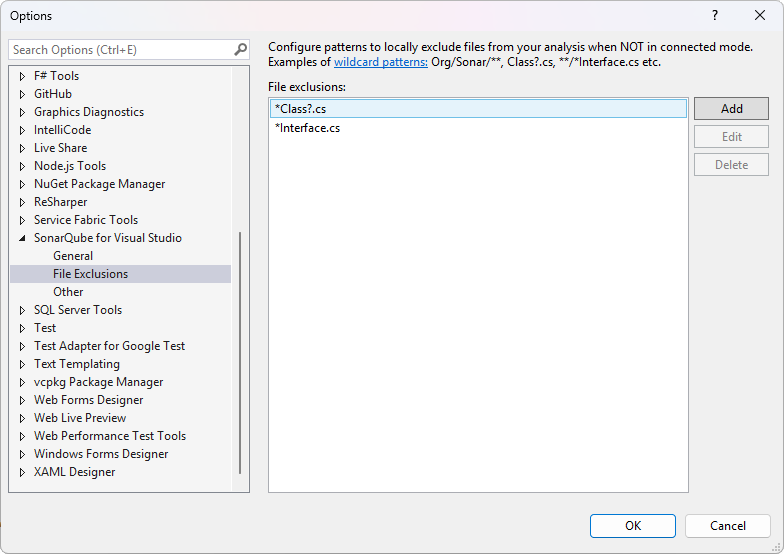
In Visual Studio, navigate to **Extensions** > **SonarQube** > **Options** > **File Exclusions** window and select **Add** to configure the file names and/or wild card patterns you want to exclude from the analysis. Select **OK** when finished.
The local file exclusions and exclusion patterns use the `sonarlint.analysisExcludesStandalone` property to update the same setting.json file where you enable and disable rules (see the [Rules and languages](/sonarqube-for-visual-studio/using/rules.md#disabling-a-rule) article). To edit this json file directly, navigate to the **SonarQube** > **Options** > **General** window and select **Edit Settings**, which will open your settings.json file in Visual Studio. As when using the UI, exclusions for C# and VB.NET files are applied on the next analysis.
### settings.json file format and location
The settings.json file is stored in your user’s roaming profile `%APPDATA%\SonarLint for Visual Studio`.
See this example as a format sample of your settings.json file. It changes the parameters on a few rules, and at the end, excludes any files matching `*Interface.cs` plus everything in the `org/sonar/*` directory.
```json
{
"sonarlint.rules": {
"c:S1135": {
"level": "On"
},
"cpp:S1199": {
"level": "Off"
},
"cpp:SingleGotoOrBreakPerIteration": {
"level": "On",
"parameters": {
"maxNumberOfTerminationStatements": "1"
}
},
"javascript:S1135": {
"level": "Off"
},
"typescript:S1854": {
"level": "On"
}
}
"sonarlint.analysisExcludesStandalone": "**/*Interface.cs,org/sonar/*"
}
```
## Defining solution exclusions
Navigate to **Extensions** > **SonarQube** > **Solution Settings** > **File Exclusions** and select **Add** to configure the file names and/or wild card patterns you want to exclude from the analysis. Any acceptable wildcard pattern can be used. Note that the values you define here will override the global values defined in your File exclusions. Remember that when running SonarQube for Visual Studio in [Connected mode](/sonarqube-for-visual-studio/connect-your-ide/connected-mode.md), all locally defined exclusion values will be ignored.
Check the [Scan my project](/sonarqube-for-visual-studio/using/scan-my-project.md) page for information about specifying additional analyzer properties.
## Wildcard patterns
The recognized path-matching patterns are case-sensitive and defined using the following wildcards:
* `*` Match zero or more characters (not including the directory delimiter, `/` ).
* `**` Match zero or more directory segments or files within the path.
* `?` Match a single character (not including the directory delimiter, `/` ).
**Wildcard examples**
* The pattern `**/*.css`
* matches `anyDirectory/anyFile.css`
* doesn’t match `org/sonar.api/MyBean.java`
* The pattern `**/*Bean.java`
* matches `org/sonar.api/MyBean.java`
* doesn’t match `org/sonar.api/mybean.java` or `org/sonar/util/MyDTO.java`
* The pattern `**/*Bean?.java`
* matches `org/sonar/util/MyOtherBean1.java`
* doesn’t match `org/sonar/util/MyOtherBean.java`
* The pattern `org/sonar/*`
* matches `org/sonar/MyClass.java`
* doesn’t match `org/sonar/util/MyClassUtil.java`
* The pattern `org/sonar/**/*` is equivalent to `org/sonar/**` and
* matches `org/sonar/anyDirectory/anyFile`
* matches `org/sonar/MyClass.java`
* doesn’t match `org/radar/MyClass.java`
The use of `?` to match a single character is available in SonarQube for Visual Studio.
{% hint style="info" %}
Note that when running in connected mode, only the file exclusions defined on the server are respected.
When running a local analysis for Security hotspots, which requires using connected mode, it is possible to omit some folders from the project analysis. Because you are in [Connected mode setup](/sonarqube-for-visual-studio/connect-your-ide/setup.md), a requirement to detect security hotspots in SonarQube for IDE, exclusions defined in Visual Studio will be ignored.
Check the documentation on [Security hotspots](/sonarqube-for-visual-studio/using/security-hotspots.md) for those details.
{% endhint %}
## Special exclusion cases
**.cshtml or .razor files**
To exclude .cshtml or .razor files in SonarQube for Visual Studio, you must add a wildcard to cover a postfix to the file extension. For example, to exclude all .cshtml files, use the `*cshtml*` pattern; for .razor files, use `*razor*`.
Additionally, adding the analysis property `sonar.cs.analyzeRazorCode` with the value `false` will completely disable the analysis for all Razor files.
## Retrieving exclusions from the server File exclusions
When running in connected mode, SonarQube for Visual Studio will fetch file exclusions from SonarQube Server or SonarQube Cloud when you bind a project. These settings are saved to a file named sonar.settings.json.
Note that in SonarLint for Visual Studio 7.0, the settings file was moved outside of the solution directory; please check the **Legacy Connected Mode** article on the [Previous versions](/sonarqube-for-visual-studio/resources/previous-versions.md) page for information about the settings file in versions 6.16 and older.
For more information about how SonarQube for Visual Studio settings are handled by the server, look at the server documentation on setting your analysis scope:
* See the [Setting analysis scope](/sonarqube-server/2026.1/project-administration/adjusting-analysis/setting-analysis-scope.md) pages in SonarQube Server.
* See the [Analysis scope](/sonarqube-cloud/managing-your-projects/project-analysis/setting-analysis-scope.md) pages in SonarQube Cloud.
* See the [Setting analysis scope](/sonarqube-community-build/project-administration/adjusting-analysis/setting-analysis-scope.md) pages in SonarQube Community Build.
Known limitations for file exclusions:
* Supported Languages: C# & VB (.NET support in SonarLint v6.15+), C, C++, CSS, JavaScript, TypeScript, and Secrets.
* Patterns should start with `**/`
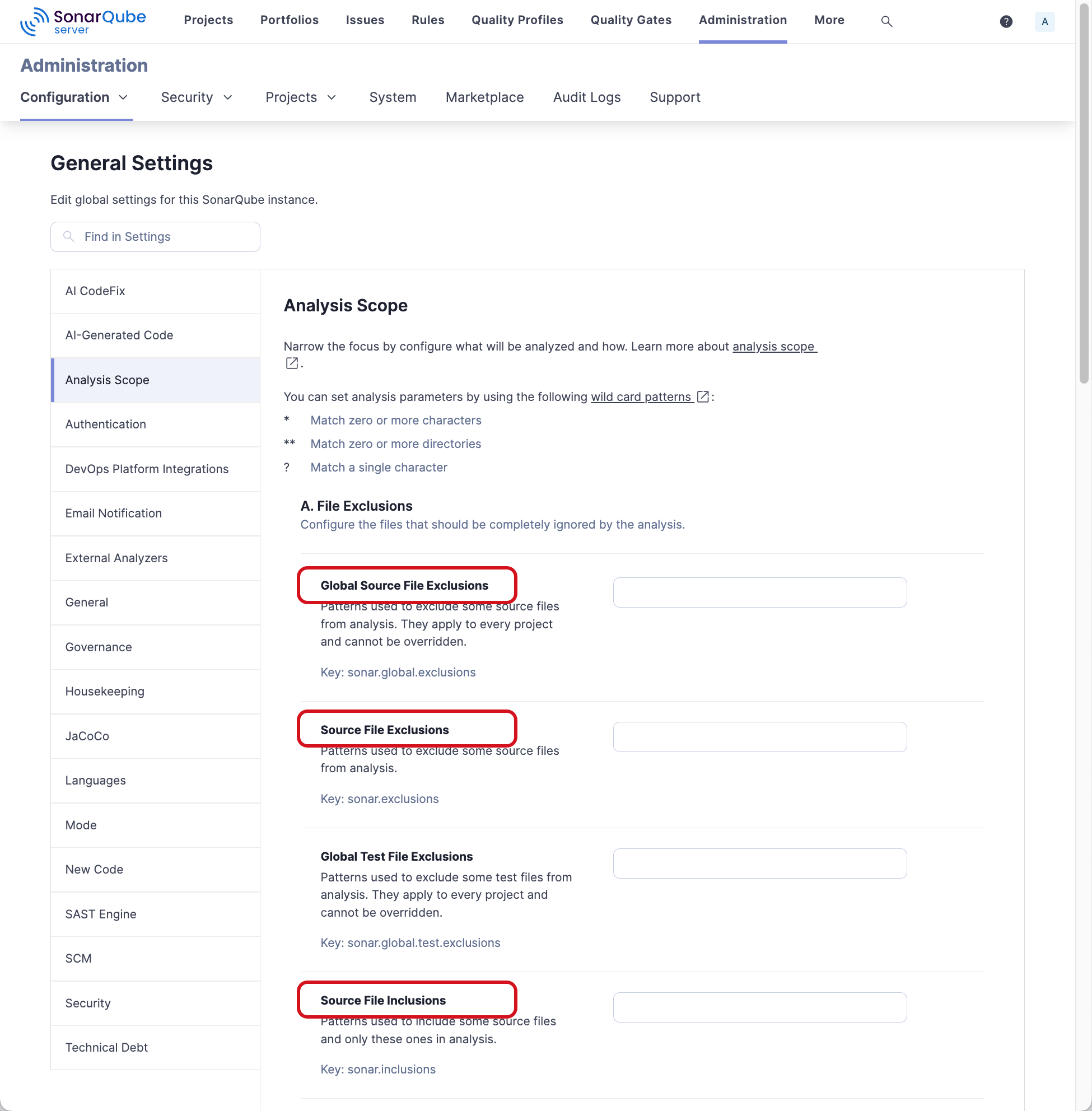
* Multicriteria and Test exclusions are not supported. SonarQube for Visual Studio only supports Global Source File Exclusions, Source File Exclusions, and Source File Inclusions when setting the analysis scope. For more information about file inclusion and exclusion, see the pages about file inclusion and exclusion in the
* [Excluding based on path-matching patterns](/sonarqube-server/2026.1/project-administration/adjusting-analysis/setting-analysis-scope/excluding-files-based-on-patterns.md) in SonarQube Server
* [Excluding based on path-matching patterns](/sonarqube-cloud/managing-your-projects/project-analysis/setting-analysis-scope/excluding-files-based-on-patterns.md) in SonarQube Cloud
* [Excluding based on path-matching patterns](/sonarqube-community-build/project-administration/adjusting-analysis/setting-analysis-scope/excluding-files-based-on-patterns.md) in SonarQube Community Build
---
# Agent Instructions
This documentation is published with GitBook. GitBook is the documentation platform designed so that both humans and AI agents can read, navigate, and reason over technical content effectively. Learn more at gitbook.com.
## Querying This Documentation
If you need additional information that is not directly available in this page, you can query the documentation by asking a question.
Perform an HTTP GET request on the following URL with the `ask` and `goal` query parameters:
```
GET https://docs.sonarsource.com/sonarqube-for-visual-studio/using/file-exclusions.md?ask=&goal=
```
`ask` is the immediate question: it should be specific, self-contained, and written in natural language.
`goal` is what the user is ultimately trying to achieve, the reason they need the answer. Sharing it helps GitBook give you a better, more relevant answer. A goal is most helpful when it describes the outcome the user wants rather than restating the question. For example, with `ask=how do I create an API token`, a goal like `automate deployments from our CI pipeline` lets GitBook tailor the answer to that use case.
The response will contain a direct answer to the question and relevant excerpts and sources from the documentation.
Use this mechanism when the answer is not explicitly present in the current page, you need clarification or additional context, or you want to retrieve related documentation sections.